
What if the problem with remote work is not distance, but drift? A meeting ends, the chat keeps moving, and the one decision everyone needed slips past three time zones and two inboxes.
That is where AI tools for remote work have started to matter.
They are not just flashy add-ons; they can turn scattered notes, long threads, and rough drafts into something people can actually use before the workday runs away with them.
In artificial intelligence in remote teams, the useful wins are usually quiet ones.
A meeting summary catches the action item someone missed.
A draft message sounds clearer on the second pass.
A long document becomes searchable in plain language instead of buried under keywords and folder names.
That matters because remote teams live or die by clarity.
As of 2024, hybrid and remote work still represented a significant share of the workforce, which kept pressure high on remote work technology that reduces friction instead of adding it.
The real challenge is not whether AI can write or summarize.
It is whether it helps people stay aligned, move faster, and avoid the small misunderstandings that slowly break good remote work apart.
Table of Contents
Why AI Is Changing the Remote Work Advantage
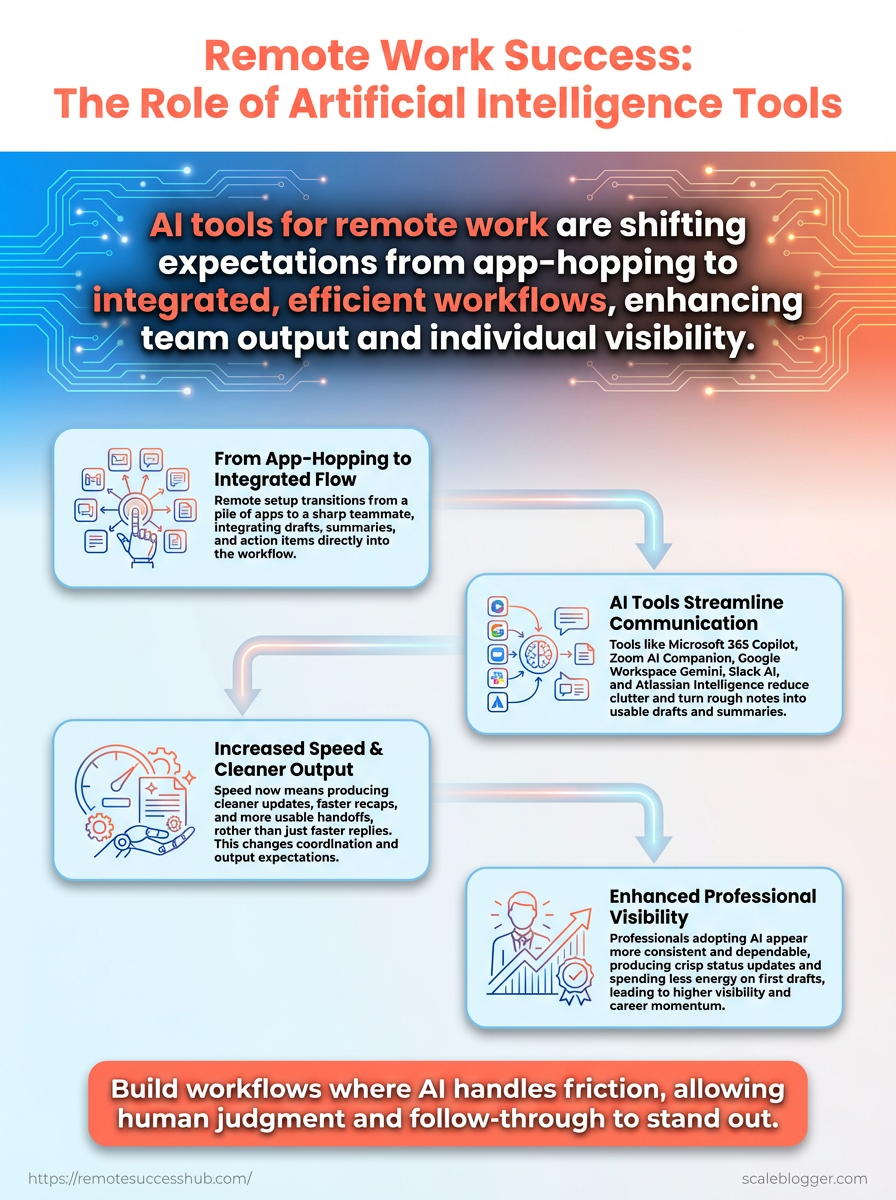
What if your remote setup behaved less like a pile of apps and more like a sharp team that kept itself organized? That is the real shift AI brings to remote work. It does not just speed up writing. It helps the work itself move with less friction.
In remote teams, friction usually hides in the gaps: missed decisions, scattered notes, slow follow-ups, and too many places to search for one answer. AI tools for remote work are closing those gaps by summarizing meetings, drafting updates, and turning messy conversations into clear next steps. Microsoft 365 Copilot inside Word, Outlook, Teams, and Excel is a good example, and so are Zoom AI Companion, Slack AI, Gemini for Workspace, and Atlassian Intelligence.
From scattered tools to a coordinated workflow
Remote work technology used to be about access. Could people join the call, read the doc, and send the message? Now the bar is higher. Teams expect speed, clarity, and a record of what happened without making one person become the human glue.
That changes how work feels day to day. Meeting summaries cut recap time. Drafted replies make status updates cleaner. Search becomes less about hunting keywords and more about getting a useful answer fast.
In a remote setup, that matters because the delay between “we discussed it” and “it is actually moving” can kill momentum.
As of 2026, Microsoft 365 Copilot is commonly priced around $30 per user/month, which shows how seriously vendors are treating AI as core work infrastructure.
Why the career edge is real
The advantage is not only team-level. It is personal. Remote professionals who use artificial intelligence in remote teams tend to look more consistent because their communication is faster and clearer. They also become more visible, since action items, follow-ups, and written updates land with less delay.
A simple example makes this obvious. A remote manager who uses Slack AI to clean up thread summaries, plus Teams or Zoom summaries to capture meeting outcomes, spends less time reconstructing context. That extra time can go into decisions, relationships, and actual output. For deeper remote-work systems and practical workflows, resources like Remote Success Hub fit naturally into that gap between advice and execution.
The real edge comes from reliability. When AI removes small delays everywhere, remote workers start looking like people who always keep things moving.
Core AI Tools for Remote Work and What They Solve
A messy remote stack rarely fails because of one big tool.
It fails because every tiny decision eats attention: what to answer first, which meeting note matters, and where the final version lives.
AI tools for remote work mainly solve that friction.
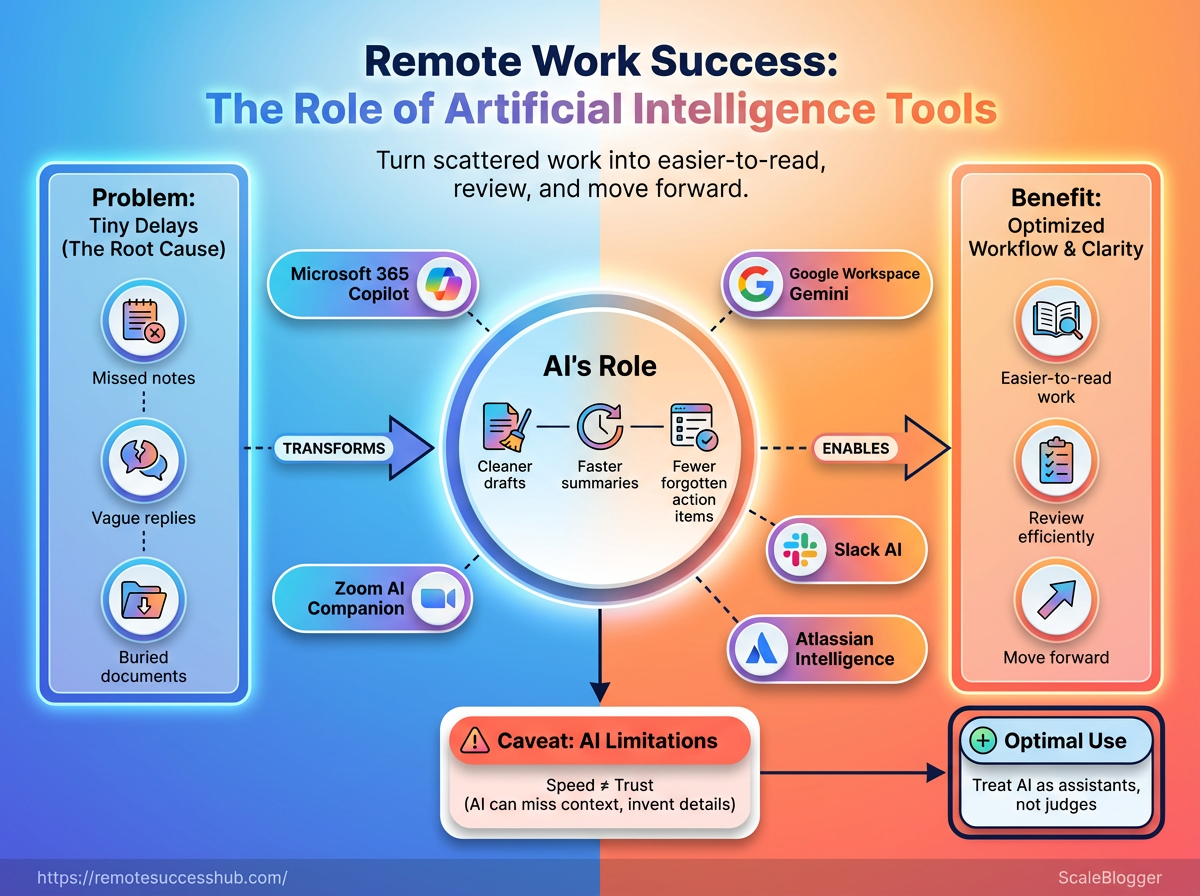
They turn meetings into action items, chats into clean summaries, and rough thoughts into usable drafts.
Microsoft Teams, Zoom AI Companion, Google Workspace with Gemini, Slack AI, and Atlassian Intelligence each attack a different bottleneck.
Microsoft 365 Copilot is also commonly listed at $30 per user/month in 2026, so it makes the most sense when it replaces hours of cleanup, not just a few clever prompts.
Tool categories and the problems they clear away
Tool category | Primary use case | Best for | Key benefit | Example workflow |
|---|---|---|---|---|
AI task managers | Turning notes into tasks and priorities | People juggling meetings, chats, and deadlines | Reduces decision fatigue | Paste a meeting recap, rank tasks by urgency, assign owners, and send follow-ups. |
Meeting assistants | Summarizing calls and extracting action items | Cross-time-zone teams | Keeps absent teammates aligned | Record a Zoom meeting, generate a summary, and share decisions in the team channel. |
Collaboration suites with embedded AI | Drafting across email, docs, slides, and chat | Teams already deep in Microsoft or Google tools | Cuts app switching | Draft in Word or Docs, refine the language, and move the final version into email. |
Writing and editing tools | Rewriting updates, messages, and briefs | Remote professionals who write all day | Speeds first drafts | Use Microsoft 365 Copilot or Gemini to clean up a status update before sending it. |
Chat summarizers | Compressing long Slack threads | Async teams with busy channels | Helps people catch up fast | Summarize a thread before replying, then jump in with the missing detail. |
Knowledge search tools | Finding answers inside docs and wikis | New hires and support-heavy teams | Lowers repeated Q&A | Ask a natural-language question, surface the right policy, and summarize it in plain English. |
Automation platforms | Moving information between apps | Ops-heavy remote teams | Removes repetitive admin work | Turn meeting notes into a task, push the owner into Jira, and notify Slack. |
Translation and localization helpers | Adapting messages across languages | Global teams and client-facing roles | Reduces misunderstanding | Write one message, translate it, and check tone before sending. |
The pattern is pretty consistent.
The best tools do not replace judgment; they compress the mess around it.
That matters most in remote work, where context gets scattered across tabs, threads, and calendars.
Zoom AI Companion is useful when recap friction is the problem, Slack AI helps when a thread has become a small novel, and Atlassian Intelligence is handy when project notes need to become something people can actually act on.
A small stack usually beats a flashy one.
One assistant for meetings, one for writing, one for search, and one for automation can cover most of the daily grind without creating more noise.
For teams using remote work technology well, the win is simple: less time reconstructing context, more time moving work forward.
How to Choose the Right AI Tools for Your Remote Role
A flashy AI tool can still be the wrong tool for your day. Remote work gets messy when software solves a problem you do not actually have. The fastest way to choose well is to start with friction, not features. If your biggest pain is writing status updates, look at drafting support.
If the pain is meeting follow-through, look at summarization and action-item tools. If the pain is scattered knowledge, prioritize search and document help. Privacy and policy matter just as much as speed. Remote work technology often touches chat logs, meeting notes, customer data, and internal docs, so the safest choice is the one your team can actually approve and control.
That decision tree should make the first split very simple: productivity, collaboration, documentation, or reporting. It also separates “nice to have” tools from the ones that can safely sit inside your daily workflow. A practical test starts small. Try one low-stakes task, like rewriting a routine update or summarizing a non-sensitive meeting.
For teams already deep in Microsoft apps, Microsoft 365 Copilot can be a natural fit for drafting and summaries inside Word, Outlook, Teams, and Excel, but only if the plan and tenant setup support the features you need.
Pick one repeatable task: Use a task you do every week, not a one-off project.
Keep the data low risk: Avoid private client details, legal text, or anything decision-critical.
Check the output by hand: AI can speed you up, but it should not be trusted blindly.
Review policy before scale-up: Confirm that the tool fits company rules, admin settings, and data handling expectations.
Measure the real benefit: If it does not save time or reduce mistakes, drop it.
The best AI tools for remote work earn their place quietly. They remove friction without creating new cleanup work, and that is the standard worth keeping.
Using AI Tools to Build Career Momentum in Remote Work
What if AI was not mainly about speed, but about making your work easier to notice for the right reasons? That is where a lot of remote professionals miss the mark. They use AI tools for remote work to draft faster, but the real gain comes from turning rough output into clearer signals: cleaner status updates, sharper meeting notes, and better follow-through. A polished draft from Microsoft 365 Copilot or Gemini for Workspace still needs your judgment.
Add the context only you know, and it stops sounding generic. That is how artificial intelligence in remote teams becomes useful without flattening your voice. Remote career momentum also depends on documentation people can trust. Tools like Zoom AI Companion, Slack AI, and Atlassian Intelligence can turn conversations into summaries and action items, which helps keep projects moving when people are scattered across time zones.
A short recap in Slack is nice; a recap with owners, dates, and next steps is better.
Use AI for the first draft, not the final word. Let it clean up structure, then add your real examples, priorities, and opinions.
Turn meetings into proof of progress. Summaries and action items make your contribution visible, especially when you are not in every live conversation.
Write for the next person. Good documentation saves future time, and it makes you look like someone who thinks beyond the immediate task.
Spend the saved time on growth. Use the extra hours for deeper work, better client thinking, or one skill that raises your value.
A simple example: after a project call in Teams or Zoom, let AI generate the recap, then rewrite the action items in plain language before sharing them. That small edit keeps the message human and lowers the chance of confusion later. The smartest remote workers do not ask AI to replace effort. They use it to protect their energy for the parts that build trust, skill, and leverage.
That is where career momentum lives. Not in louder output, but in work people can clearly follow and confidently rely on.
Common Mistakes Remote Teams Make with AI Tools
A remote team can add three AI tools and still ship slower.
The problem is usually not the software itself.
It is the habit of handing judgment, workflow, and accountability to the model before the team has earned that trust.
That shows up fast in daily work.
A meeting recap from Microsoft Teams or Zoom AI Companion can save time, but it should not become the final record if decisions were vague in the room.
The same goes for drafting help in Slack AI or Gemini for Workspace: useful for speed, risky when nobody checks tone, accuracy, or ownership.
The teams that get this right treat artificial intelligence in remote teams like a helper, not a manager.
They decide where AI can draft, where humans must approve, and which outputs actually matter.
Common failure modes and better habits
Common mistake | Why it happens | Better approach | Result to track |
|---|---|---|---|
Automating too much | Teams want speed and assume every repetitive task is safe to hand off | Keep judgment-heavy steps human, especially approvals, sensitive replies, and client-facing decisions | Fewer corrections, fewer escalations |
Tool overload | Each department adds its own AI tool, then workflows fragment | Standardize on a small set of AI tools for remote work and define one path for each task | Faster handoffs, less duplicate work |
Weak team adoption | People use the tool differently, so results become uneven and hard to trust | Create shared prompts, examples, and review rules during onboarding | More consistent outputs across the team |
No measurable ROI | Usage looks high, so leaders assume value without checking outcomes | Track cycle time, rework, response quality, and task completion instead of logins | Clearer link between AI use and work results |
Remote work technology only pays off when the workflow is clear enough to measure.
A team using Atlassian Intelligence for documentation, for example, still needs a standard for what counts as “done,” or the drafts just pile up in a prettier format.
The pattern is simple.
Reduce tool sprawl, train people early, and measure work output instead of activity.
That is where AI stops being a shiny add-on and starts behaving like part of the team.
📥 Download: Download Template (PDF)
A Practical Workflow for Getting Started with AI in Remote Work
A remote setup breaks down fastest when AI is invited everywhere at once. The smarter move is almost boring: pick one recurring pain point, then choose one tool category that removes it cleanly. That first win matters more than a big rollout. In artificial intelligence in remote teams, the teams that stick with AI usually start where friction repeats every week: meeting notes, status updates, or follow-up reminders.
Start with one stubborn pain point
If meetings leave people guessing, begin with summaries. If writing slows everything down, begin with drafting support. If information keeps getting buried, begin with search and document summaries. A tool like Microsoft 365 Copilot can fit that pattern well inside Word, Outlook, Teams, and Excel, because the work stays inside the same daily flow.
That keeps remote work technology useful instead of becoming another tab to babysit.
Pick one repeating task. Choose the job that eats time every week, not the fanciest demo.
Tie it to one tool category. Use meeting support, drafting support, or knowledge support first.
Define the finish line. Decide what “better” means, such as faster follow-ups or cleaner notes.
Build a weekly loop
Monday is for planning. Let the tool help shape a draft agenda, a priority list, or a short project brief. Midweek is for communication. Use it to polish updates, turn rough notes into clear messages, or summarize a thread before replying.
Friday is for follow-up. Ask for action items, then compare them with what actually moved forward.
Planning: Turn scattered thoughts into a simple weekly outline.
Communication: Rewrite updates so they are clearer and faster to send.
Follow-up: Convert meeting notes into action items that do not disappear.
Review, then expand carefully
After two or three weeks, check whether the tool saved time or just added novelty. If it helped one workflow but not another, keep the useful part and ignore the rest. That discipline keeps AI tools for remote work grounded in reality. It also makes remote work technology feel like an assistant, not a new chore.
A small workflow that sticks beats a broad rollout that fades. That is usually where the real payoff starts.
Conclusion
Turn Drift Into Momentum
Remote work gets easier when AI handles the seams between messages, meetings, and task lists.
The real advantage is not flashy automation; it is fewer dropped decisions and faster follow-through across time zones.
That is why the strongest AI tools for remote work are the ones that reduce drift before it turns into rework.
The workflow example from earlier matters because it mirrors how artificial intelligence in remote teams should work in real life: capture the meeting, assign the next step, and surface the deadline where people actually work.
That is the quiet power of good remote work technology.
Tools like Remote Success Hub can be a useful place to find practical ideas that fit real routines instead of adding another layer of noise.
Pick one recurring pain point today—meeting notes, follow-up reminders, or status updates—and automate just that piece first.
A small win there will show you more about your team’s bottlenecks than any shiny demo ever will.
📥 Download: Download Template (PDF)