
What if the weakest point in remote work is not the office network at all, but the device and context you switch to without thinking—your phone on home Wi‑Fi, a shared laptop in a coworking space, or a rushed password reset link?
Remote work security fails quietly because the old boundaries have disappeared.
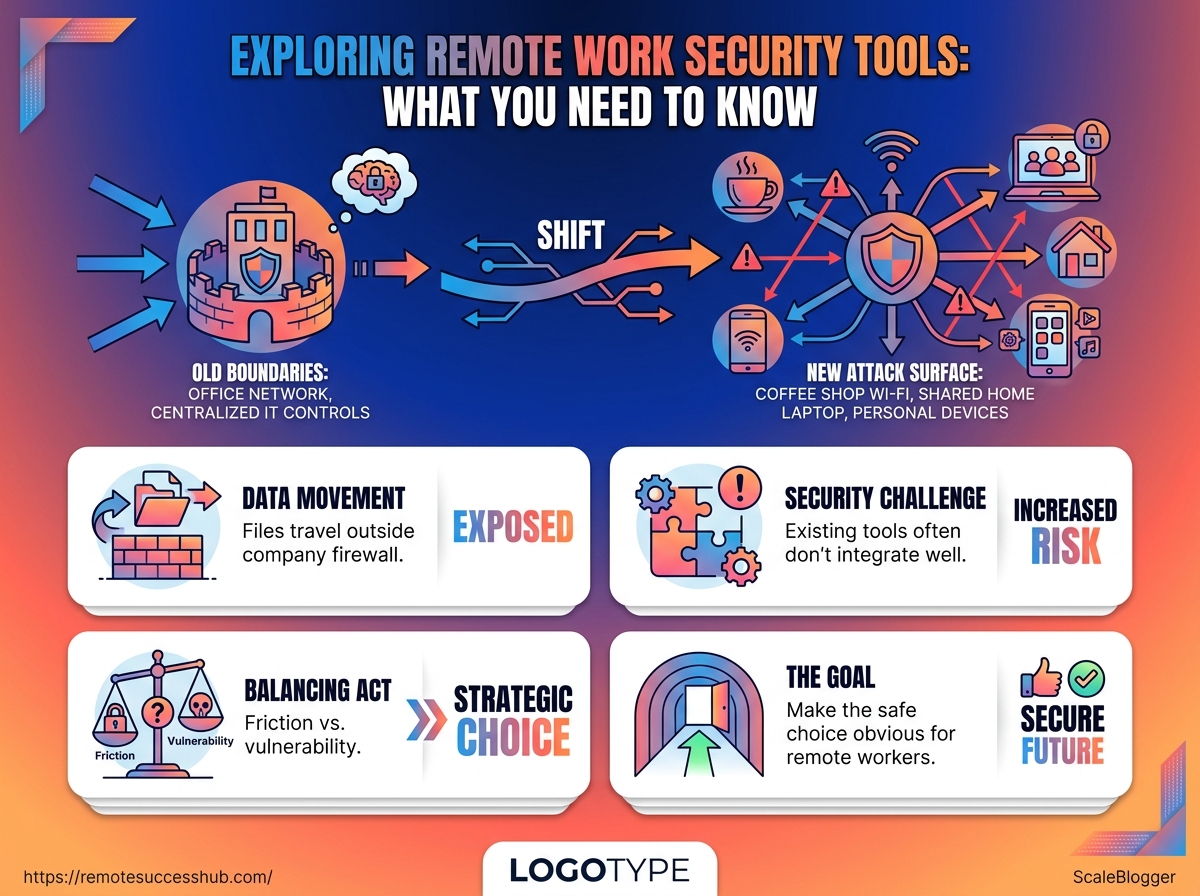
Files move across homes, coworking desks, airports, and personal devices that were never built with the same guardrails.
That is where data protection in remote work gets tricky.
The same messages, logins, and documents that once stayed behind a company firewall now travel through whatever connection happens to be available—and the weakest step is often the one you do in a hurry.
One careless click can turn that convenience into a headache nobody wants.
The strange part is that many teams already have plenty of security tools for remote teams.
They just do not fit together neatly.
A password manager here, multi-factor authentication there, maybe a VPN or endpoint protection, and still a few blind spots hiding in plain sight.
The real challenge is balance.
Too much friction, and people work around the rules.
Too little, and one phishing email can open the door.
Good remote security makes the safe choice feel like the obvious one.
Quick Answer: Remote work security depends on covering new weak points outside the office—especially unmanaged Wi‑Fi, shared home devices, and phishing-prone password resets—by deploying a connected stack that includes secure Wi‑Fi, strong passwords, multi-factor authentication (MFA), regular software updates, and consistent phishing vigilance. Choose tools that protect devices, sensitive data, and remote access as one system (not as disconnected add-ons) so employees don’t bypass controls to keep work moving.
Why remote work security changes the rules
What if your home office were the easiest place for an attacker to reach? That is the uncomfortable truth behind remote work security.
The old office model put most risk behind managed networks, locked rooms, and centralized IT controls.
At home, the attack surface spreads fast.
A router with an old password, a laptop used for both work and streaming, and a rushed click on a fake login page can all become entry points.
Harvard’s best practices for working remotely puts the usual defenses in plain English: secure Wi-Fi, strong passwords, MFA, updates, and phishing vigilance.
The real shift is responsibility.
In an office, infrastructure did a lot of the heavy lifting.
In remote work, the individual becomes part of the security stack, which is why Netwrix’s remote work security guide focuses on protecting devices, sensitive data, and remote access habits together.
That also makes security a productivity issue, not just an IT issue.
A single compromised account can stall client work, lock someone out of cloud apps, or trigger a reset that eats half a day.
Good data protection in remote work keeps the work moving, while weak habits turn small mistakes into deadline drama.
- Home networks are not neutral. Public Wi-Fi without protection, weak router settings, and shared family devices create easy openings.
- Behavior now carries more weight. MFA, unique passwords, and prompt patching matter because the worker is often the first and last line of defense.
- Security tools for remote teams only help when people use them well. VPNs,
ZTNA, endpoint protection, and encrypted apps reduce risk, but only if access and updates stay current. EmpCloud’s 2026 remote worker guidance makes that layering clear.
- Career impact is real. One bad security event can delay projects, damage trust, and force time spent on recovery instead of actual work.
That’s why remote security feels different.
It is less about guarding a building and more about protecting a moving target made of devices, habits, and access paths.
The teams that get this right treat security as part of daily work, not an extra chore.
That mindset keeps both the data and the day from falling apart.
The main threats remote professionals need to understand
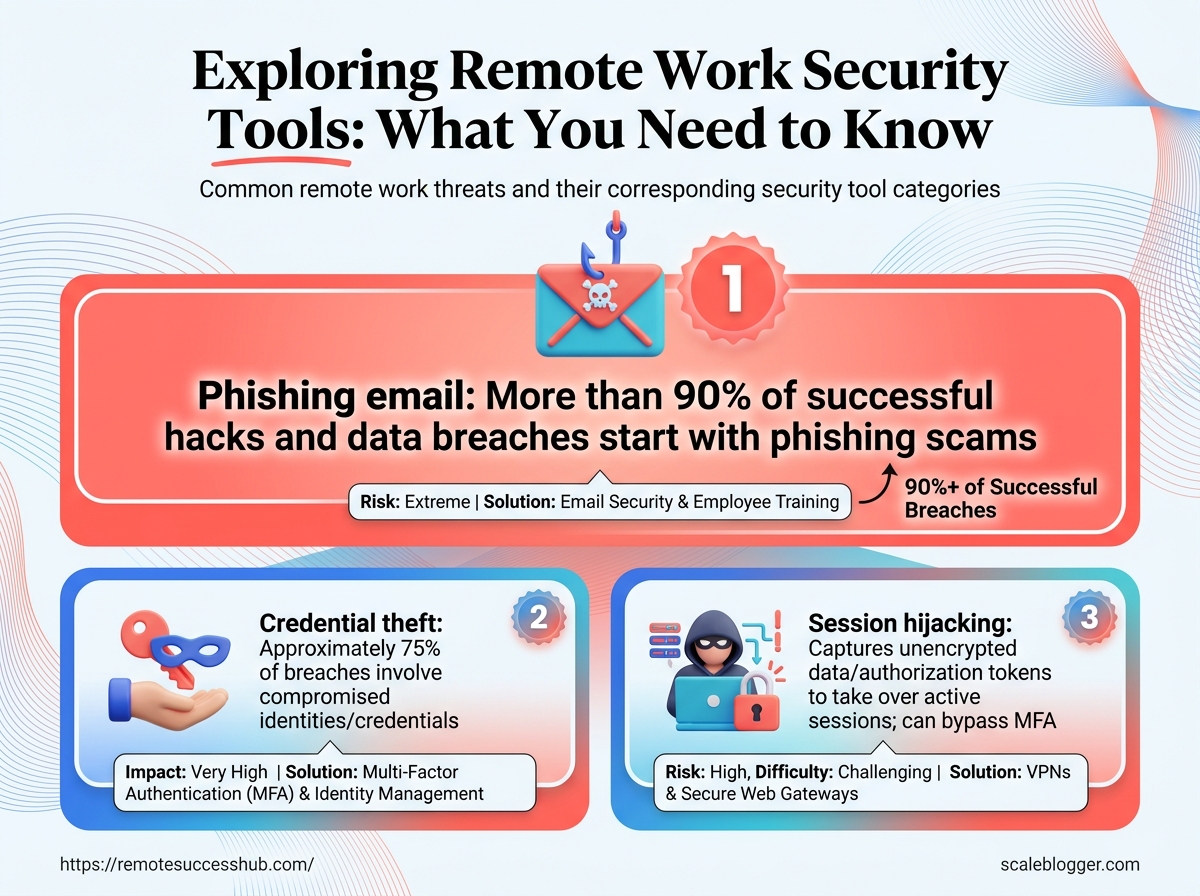
A fake invoice or login prompt can do more damage than a loud malware alert.
In remote work, the attacker usually wants the quiet path: steal a password, borrow a session, or slip through a trusted app.
Harvard’s remote work guidance still centers on phishing resistance, strong unique passwords, MFA, and timely updates, which tells you where the pressure points sit Harvard Privacy and Security guide on working remotely.
Netwrix makes the same point from a different angle: remote security failures often start with an account, a device, or a network that looks ordinary until it is not Netwrix remote work security overview.
The nastiest part is how the threats stack up.
A laptop on café Wi-Fi, a personal phone with work mail, and a handful of consumer apps can turn one mistake into a messy data trail.
Threats, likely impact, and the tool category that helps
| Threat | Typical Scenario | Business Impact | Best Tool Category |
|---|---|---|---|
| Phishing email | Fake login or invoice request | Stolen credentials, wire fraud, mailbox abuse | Email security and MFA |
| Credential theft | Password reused across services | Account takeover and lateral access | Password manager and MFA |
| Session hijacking | Browser session stolen after login | Unauthorised access without new login prompts | Session controls and device security |
| Public Wi-Fi | Work from café or airport | Data interception and man-in-the-middle risk | VPN and secure hotspot practices |
| Lost laptop | Device left unattended or stolen | Sensitive data exposure | Device encryption and remote wipe |
| Personal device use | Work done on a family computer | Malware spread and weak control over data | Endpoint management |
| Unauthorized apps | Personal tools used for work | Shadow IT and untracked data sharing | Endpoint and app governance |
| Mixed accounts | Personal cloud and work files overlap | Accidental disclosure and compliance trouble | Access control and data classification |
| Shared browser profiles | Work and personal tabs saved together | Session leakage and wrong-account uploads | Browser separation and identity controls |
A browser saved on the wrong profile can expose files just as fast as a stolen password, especially when personal cloud storage and work email blur together.
Upwork’s remote worker guidance also puts encryption and protected communication channels near the top of the list, because data protection in remote work depends on limiting where sensitive files travel Upwork data security best practices for remote workers.
The practical habit is simple: keep work accounts sealed off, treat every new app as a data route, and assume a stolen login is only the first step.
Essential security tools for remote teams
A remote team usually gets safer fastest by securing the front door: identity.
When credentials and login flows are handled correctly, many attacks stop at the gate—before they ever reach files, chat, or client systems.
Harvard’s remote-work guidance consistently emphasizes identity hardening (like MFA and strong authentication) as well as keeping systems updated, because attackers exploit gaps in both.
The second layer is collaboration hygiene.
VPNs help when networks are untrusted, secure file-sharing tools keep permissions tight, and encrypted messaging reduces the risk that quick decisions made in chat turn into data exposure later.
Upwork’s remote-security guidance also calls out encryption for data in transit and at rest in its Top 10 Data Security Best Practices for Remote Workers.
That is exactly why these tools matter.
The last layer is device control.
Endpoint protection watches for suspicious behavior, device encryption makes a lost laptop less useful, and remote wipe saves you from playing detective after a phone disappears.
A practical comparison of the core tools
| Tool Category | Primary Function | Best For | Key Benefit | Limitations |
|---|---|---|---|---|
| Password manager | Securely stores and generates credentials | Individuals and teams | Reduces password reuse | Needs strong master password hygiene |
| MFA authenticator app | Adds a second verification factor | All remote workers | Blocks many account takeovers | Can be bypassed if recovery is weak |
| Single sign-on | Centralizes access to work apps | Growing teams | Simplifies access management | Depends on app compatibility |
| VPN or ZTNA | Secures network access to internal resources | Teams using untrusted networks | Hides traffic from local snooping | Does not fix weak logins or bad devices |
| Secure file sharing | Controls access to documents and folders | Teams exchanging sensitive files | Keeps permissions and links manageable | Misconfigured sharing can still leak data |
| Encrypted messaging | Protects chat and collaboration content | Fast-moving teams | Limits exposure in daily communication | Only helps if endpoints and accounts are secure |
| Endpoint protection | Detects and blocks threats on devices | Laptops and phones | Catches malicious files and risky behavior | Needs updates and admin oversight |
| Device encryption and remote wipe | Locks data to the device and erases it if lost | Mobile teams and travelers | Reduces damage from stolen hardware | Remote wipe only works when the device is online |
Identity tools reduce account theft, collaboration tools reduce data leakage, and endpoint tools reduce the blast radius when hardware goes missing.
EmpCloud’s 2026 guidance groups MFA, VPN or ZTNA, endpoint security, secure web gateways, and cloud protection as the practical stack for remote workers in its Best Ways To Secure Remote Workers in 2026.
That lines up with what works in real teams: a five-person agency can cover most daily risk with a password manager, MFA app, secure sharing, and endpoint protection before spending money on anything fancier.
The best security stack is usually the least dramatic one.
It keeps daily work moving and leaves very little room for an attacker to get comfortable.
How to choose the right tools for your remote workflow
What if the fanciest tool in your stack is still the wrong one? That happens a lot in remote work.
The better choice is usually the tool that fits your actual risk, your daily habits, and the rules your clients care about.
A solo consultant handling light admin work needs a very different setup from a contractor moving sensitive records or a team juggling client files.
Harvard’s remote-work guidance still puts the basics first: keep devices updated, stay alert to phishing, and use strong account protection measures, because clunky workflows usually get ignored fast (Harvard’s best practices for working remotely).
For data-heavy work, the feature list matters more than the logo.
Upwork’s remote data-security guidance points to encrypted communication channels and built-in encryption tools as part of everyday protection, while Oloid’s remote data-protection guidance highlights how GDPR and HIPAA-style requirements can change the bar entirely (Upwork data security best practices, Oloid on data protection in remote work).
A quick evaluation checklist
| Evaluation Criteria | Questions to Ask | Why It Matters | Pass/Fail Notes |
|---|---|---|---|
| Ease of use | Can the team learn it in one sitting? | Low friction drives daily use. | Pass if setup feels simple, not ceremonial. |
| Device compatibility | Does it work on laptop, mobile, and browser? | Prevents gaps in protection. | Pass if the core features behave the same everywhere. |
| Security controls | Does it support encryption, MFA, or admin controls? | Core protection capability. | Pass if controls are built in, not bolted on later. |
| Privacy and compliance | Does it align with client or industry requirements? | Reduces legal and contractual risk. | Pass if it meets the strictest client policy you face. |
| Integrations | Does it connect cleanly with your calendar, storage, and chat tools? | Cuts duplicate work and manual errors. | Pass if it reduces clicks instead of adding them. |
| Audit trail | Can you see who changed what and when? | Helps with incident review and accountability. | Pass if logs are easy to export and understand. |
| Data retention | Can you control how long files and messages stay stored? | Limits exposure over time. | Pass if retention rules are adjustable. |
| Support quality | Is help available when something breaks? | Downtime kills remote momentum. | Pass if support is responsive during your working hours. |
A freelancer sharing drafts, calendars, and lightweight project files can often stay lean without sacrificing much.
Paid tools become essential when the workflow includes sensitive client data, stricter audit needs, or multiple people touching the same system.
That is where security tools for remote teams stop being optional extras and start acting like guardrails.
A simple test helps: if a tool saves time but creates confusion, it is a bad fit.
If it lowers friction and keeps data protection in remote work boring, predictable, and easy to enforce, it is probably the right one.
How to implement security tools without slowing down work
A small team does not need a giant security rollout to get safer.
It needs one clean sequence.
Start with the protections that remove the most risk with the least daily effort: multi-factor authentication, a password manager, device encryption, and tight file-sharing rules.
That lines up with Harvard’s remote-work guidance on MFA, strong passwords, updates, and phishing defense, which are still the basics that matter most in 2026 (Harvard Kennedy School Privacy Tools and best practices for working remotely).
The trick is not adding more logins.
It is making the secure path the easy path.
Netwrix’s remote-work security guidance points in the same direction: protect devices, control access, and keep policies simple enough that people actually use them (Netwrix remote work security best practices).
- Turn on MFA first.
Recovery codes should be stored somewhere safe, not in a shared chat thread.
- Move passwords into one manager.
That cuts down on password reuse and messy handoffs.
- Encrypt devices before anything else.
Set this once, then check it during onboarding.
- Write a tiny access rule.
Approvals for new access should be simple, named, and documented.
- Set one sharing rule.
If a project needs outside access, use expiring links and named recipients.
- Build habits into the day.
That rhythm matters more than fancy controls.
IPC Tech’s 2026 remote-work guidance also stresses patching, encryption, and careful public-network use as part of everyday hygiene (IPC Tech cybersecurity best practices for 2026).
When security fits the workday, people stop resisting it.
That is usually where remote work security starts paying off.
Common mistakes remote professionals make with security tools
A polished security stack can still fail on the first forgotten recovery email.
That sounds dramatic, but it happens more often than people think in remote work security.
The biggest trap is treating one tool like a full shield.
A password manager, VPN, or endpoint app helps, but none of them covers account recovery, device loss, or a rushed click on a fake login page.
Assuming one tool solves every risk
A lot of security tools for remote teams only protect one layer.
That is why layered guidance keeps showing up in remote-work advice from Harvard’s best practices for working remotely, Netwrix’s remote work security guidance, and EmpCloud’s remote worker security recommendations.
The mistake is buying confidence instead of coverage.
A password manager does not stop a compromised laptop, and a VPN does not fix bad sharing habits in cloud apps.
Overlooking backup and recovery settings
The awkward truth is that backups matter most when something else has already gone wrong.
In data protection in remote work, recovery settings are part of the security design, not an afterthought.
That means checking where recovery codes live, who can reset an account, and whether backup files are actually restorable.
Upwork’s data security guidance for remote workers also points to encryption and protected channels, which only help if the backup path is equally sound.
A practical example: if a phone holding your MFA app gets wiped, weak recovery settings can lock you out of email, payroll, and client systems at once.
Ignoring the human layer
Remote work security breaks down fast when people stop paying attention.
Tools cannot replace training, reminders, and clear accountability, especially when teams are spread across time zones.
Harvard’s remote-work guidance emphasizes vigilance against phishing, while Netwrix and Navatek both stress policies and employee awareness as part of everyday protection.
A two-minute refresher before a busy week usually beats a long security training once a year.
The best teams make security boring on purpose.
They remind people to verify odd requests, report strange prompts, and use the recovery process before an emergency forces it.
A simple pattern helps here:
- Test recovery monthly: Check password reset, MFA reset, and backup restore paths.
- Assign ownership: One person should track settings, not “everyone.”
- Refresh habits often: Short reminders work better than rare lectures.
The strongest remote setup is not the fanciest one.
It is the one that still works after a lost phone, a phishing email, or a tired Friday afternoon.
Security That Travels With the Work
Remote work security isn’t about locking everything down harder—it’s about making sure the right protections move with the device, the connection, and the way you access client accounts.
A strong setup blends three things: dependable identity protection, controlled access to files and collaboration, and device safeguards that limit damage when something goes wrong.
If you take one next step today, make it practical:
Pick one workflow point where failures are most likely—for example, how you sign into client tools, where shared links come from, or how you handle access on a device you don’t fully control.
Then verify the “after” path too: account recovery works, sensitive files stay in approved storage, and your team has a simple rule for what to do when an account looks suspicious.
Done well, security becomes invisible—so your work stays flexible, your client trust stays intact, and you spend less time recovering and more time delivering.