
Open your laptop and five apps are already vying for attention—calendar, chat, ticketing, docs, and a meeting window. Remote work has become the default setting for millions, not a perk.
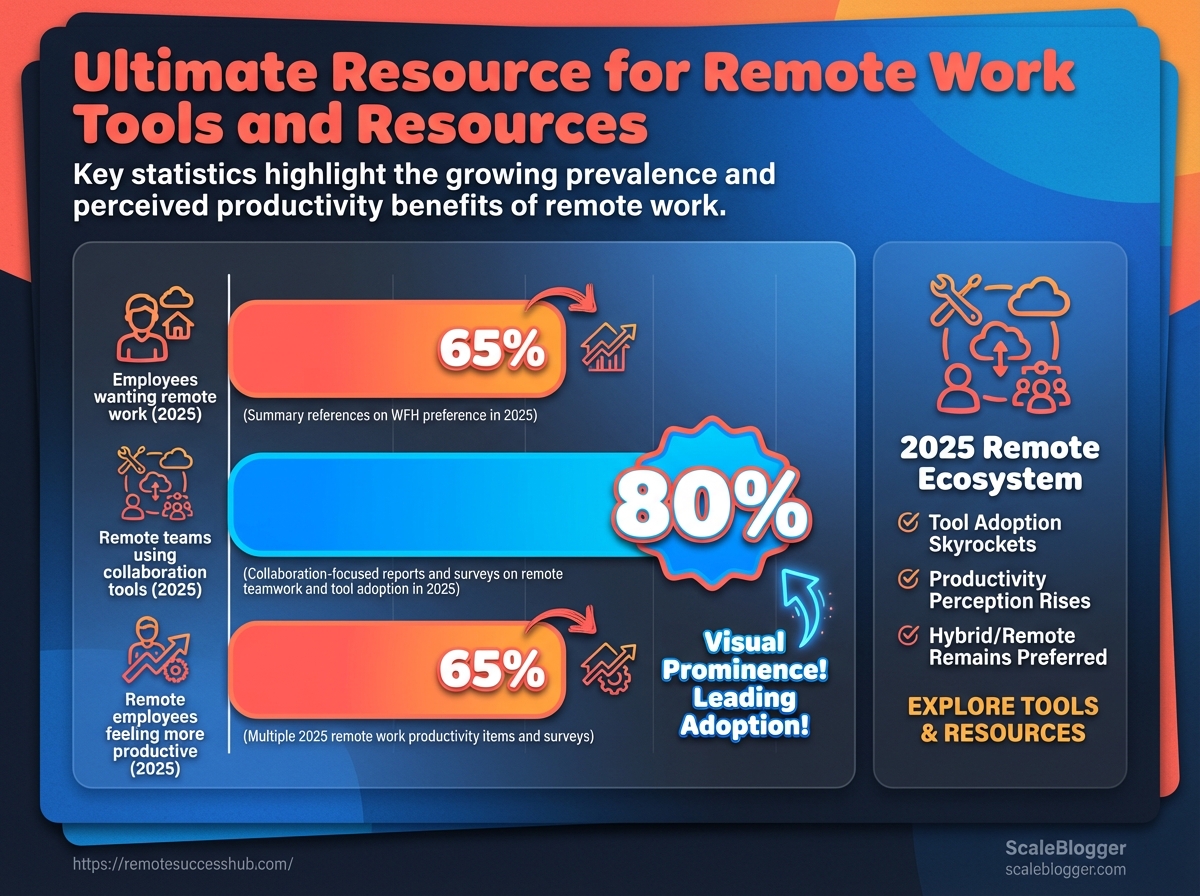
Seventy-four percent of employees want to work remotely at least part-time (2025).
Tool sprawl is the invisible tax on attention and time.
In 2025, 86% of remote teams used productivity tools and collaboration platforms regularly.
That usually means overlapping features, costly subscriptions, and constant context switching.
At the same time, many people report higher output: 80% felt more productive working from home (2025).
The issue is not output; it’s that fractured workflows erase the gains.
That makes choosing tools an underrated professional skill.
When the wrong apps win, meeting counts swell and deep work evaporates.
Choosing the right tools turns accumulated friction into predictable time blocks and steadier results.
Picking a focused stack is one of the simplest career upgrades for remote professionals.
Table of Contents
Opening: The Remote Work Landscape
74% of employees said they want to work remotely at least part-time in 2025.
That preference has pushed employers to rethink job design, career ladders, and team structures.
Remote job postings grew 25% in 2025 compared with 2024, while 86% of remote teams reported regular use of collaboration tools that keep work moving.
At the same time, 80% of remote employees said they felt more productive working from home in a 2025 survey.
For driven professionals, that combination is both a launchpad and a minefield.
Opportunity exists across industries, but standing out requires different skills than in an office.
74% want hybrid work (2025).
Remote postings +25% year-over-year (2025). 86% use collaboration tools (2025). 80% report higher productivity at home (2025).
How remote work is reshaping careers
Remote-first and hybrid roles are expanding the talent marketplace beyond local geographies.
Employers now prize outcomes, documentation, and visibility over office presence.
That shift rewards people who can communicate async, manage projects across time zones, and use tools that scale.
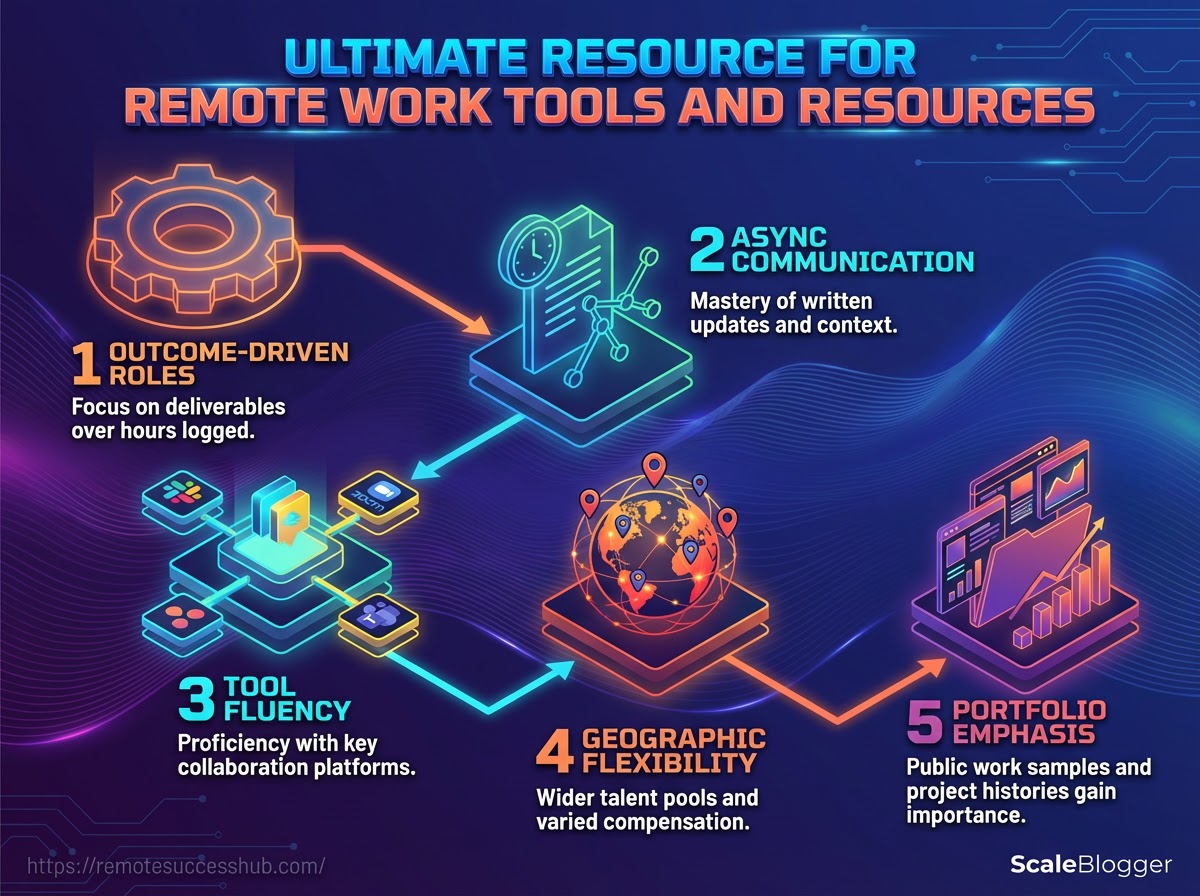
Outcome-driven roles: Companies hire for deliverables and metrics rather than hours logged.
Async communication: Mastery of
asyncupdates and clear written context becomes a competitive advantage.Tool fluency: Familiarity with Slack, Zoom, Asana, and Microsoft Teams is assumed — not optional.
Geographic flexibility: Talent pools widen, but compensation and competition also change by region.
Portfolio emphasis: Public work samples, documented wins, and project histories gain weight in hiring.
Common pain points for ambitious remote professionals
Working remotely multiplies both freedom and friction.
Expect these recurring challenges. Visibility: Remote contributors can be overlooked for promotions without proactive documentation of impact. Career mapping: Traditional career paths feel fuzzier when managers are distributed and job levels vary. Collaboration fatigue: Too many meetings or overlapping tools create attention debt and burnout. Skill signaling: Demonstrating leadership and hard skills without in-person projects requires different evidence. Tool overload: Juggling Slack, Zoom, Asana, and Teams without a clear workflow wastes time.
How this guide accelerates your remote career
This guide focuses on what actually moves the needle: writing visible work, shipping reproducible results, and building cross-time-zone influence.
Expect tactical templates for async updates, rubrics to translate wins into promotions, and workflows that reduce meeting noise.
Practical templates: Ready-to-use async update and status-report formats.
Promotion playbook: Steps to convert visibility into compensation and title changes.
Tool workflows: Setup patterns for Slack, Zoom, Asana, and Microsoft Teams to cut friction.
Networking roadmap: How to build influential relationships without shared office time.
Measurement framework: Track outcomes with simple metrics hiring managers respect.
This section frames why remote work is more than a location change — it’s a career redesign.
Use the tactics ahead to turn remote preferences and tool adoption into a clear advantage.
Essential Tool Categories and How to Choose Them
Remote teams succeed when tools map directly to the work people do.
Choose categories that cover synchronous chat and video, asynchronous project coordination, file collaboration, and security — then pick the best tool in each category for your team size and workflows.
In 2025, 86% of remote teams reported regular use of productivity and collaboration tools, so this isn’t optional; it’s how most distributed work actually gets done.
Start by matching tool capabilities to a small set of outcomes: faster decisions, fewer lost files, clearer ownership, and protected data.
For an individual contributor those outcomes look different than for a 50-person product org.
Factor in integrations, mobile support, and admin controls early.
Platforms like https://remotesuccesshub.com/ collect curated toolkits and playbooks that help map tools to roles if you want a starting point.
Categorizing tools for communication, productivity, security, and growth
Group tools by the problem they solve, not by features.
Communication covers real-time chat and video.
Productivity covers project tracking and task systems. File collaboration covers shared storage and live documents.
Security and growth include identity, backups, and analytics.
Communication: Real-time chat, threads, channels for team context.
Video: High-quality calls, recording, and breakout rooms.
Project management: Task ownership, timelines, and dependency tracking.
File collaboration: Versioned documents, shared drives, access controls.
Time & focus: Activity tracking, time sheets, focus analytics.
Security & identity: SSO, MFA, admin logging, and device policies.
Quick comparison: Which tool fits your role and team size
Below is a side-by-side comparison to help match tools to roles and team sizes.
Scan the “Best for” and “Key integrations” columns to see alignment with your stack.
Tool comparison table
Tool name | Primary use case | Best for (role/team size) | Pricing tier (starting) | Key integrations | Mobile support |
|---|---|---|---|---|---|
Slack | Team chat and channels | Small to medium product & ops teams | Free tier; paid plans available | Google Drive, Zoom, Asana, Office 365 | Yes |
Microsoft Teams | Chat, meetings, file storage | Enterprises using Microsoft 365 (teams of 10–1000+) | Free tier; included with Microsoft 365 Business plans | OneDrive, Outlook, SharePoint | Yes |
Discord | Casual voice/chat communities | Distributed engineering communities, small teams | Free; Nitro for advanced features | GitHub, calendar bots, Zapier | Yes |
Zoom | Video conferencing and webinars | Teams focused on large meetings and webinars | Basic (free); Pro starts at paid tier | Slack, Outlook, Google Calendar | Yes |
Google Meet | Video calls integrated with Workspace | Teams using Google Workspace (SMBs) | Free tier; paid with Workspace plans | Gmail, Google Calendar, Drive | Yes |
Whereby | Lightweight browser video calls | Freelancers and small teams needing simple links | Free tier; pro paid plans | Google Calendar, Slack | Yes |
Asana | Project and task management | Product teams and PMs, 5–200 people | Basic (free); Premium/Business paid tiers | Slack, Google Drive, Microsoft Teams | Yes |
Trello | Visual task boards | Small teams and individual contributors | Free tier; paid tiers for advanced features | Slack, Google Drive, Jira | Yes |
ClickUp | All-in-one project management | Teams wanting consolidation (5–200+) | Free tier; paid plans available | Slack, GitHub, Google Drive | Yes |
Google Drive | File storage and live docs | Teams needing collaborative docs and shared drives | Free 15GB; Workspace paid tiers | Google Workspace apps, Slack | Yes |
Dropbox | File sync and sharing | Creative teams and contractors | Free 2GB; paid plans for teams | Slack, Zoom, Trello | Yes |
Toggl Track | Time tracking and reporting | Freelancers and teams tracking billable time | Free tier; paid plans for advanced features | Asana, Trello, Jira, Slack | Yes |
Remote teams often combine a chat hub, one video provider, a PM tool, and a shared drive.
Choose for overlap: pick tools that integrate rather than stack redundantly.
Aim to limit core apps to 4–6 to reduce context switching.
Selection criteria checklist
Begin with a short pilot, then evaluate using this checklist to avoid emotional buys and license bloat.
Role fit: Does the tool solve specific role problems (PM, design, engineering) rather than appealing to everyone?
Integration surface: Will it plug into your calendar, chat, and file storage without heavy custom work?
Scalability and pricing: Does pricing scale predictably with headcount and reduce admin overhead?
Security and compliance: Does it support SSO, MFA, and exportable logs for audits?
Mobile and offline: Do mobile apps and offline modes support distributed work across time zones?
Admin controls and governance: Can IT enforce policies and manage seats centrally?
Choose tools that reduce friction, not ones that add new ceremonies.
A short pilot with a representative team and clear success metrics will reveal whether a tool helps people ship work or just creates more notifications.
Communication Tools: Best Practices and Toolset
Remote teams win or lose on how they communicate, not just which apps they use.
Pick channels to match the decision stakes, timing needs, and who must be accountable.
When that alignment exists, meetings shrink, handoffs are cleaner, and people stop repeating the same update across three apps.
Most teams benefit from a deliberate mix: a few synchronous rituals (for alignment and relationship work) and a strong asynchronous backbone (for deep focus and documentation).
Design workflows that make it obvious which mode to use for a given scenario and which tool owns the record of truth.
86% of remote teams reported regular use of productivity and collaboration tools to manage workflow and communication (2025).
Synchronous vs. asynchronous: when to use each
Synchronous communication is for fast decision-making, social bonding, and complex problem solving that requires immediate back-and-forth. Synchronous: Use for urgent decisions, onboarding conversations, and conflict resolution.
Keep meetings time-boxed and agenda-driven.
Asynchronous communication is for thoughtful work, status reporting, handoffs, and anything that benefits from a written record. Asynchronous: Use for project updates, design reviews, and task handoffs.
Expect delays and design timelines around them.
Preparation: Set expectations about response time for each channel (e.g., 1 hour for chat, 24 hours for project threads).
Documentation: Make the outcome of every synchronous meeting an asynchronous note in the shared workspace.
Escalation: Use a clear escalation path: chat → short video call → recorded meeting notes.
The balance reduces meeting load while improving clarity and accountability.
Recommended tool workflows for meetings, updates, and handoffs
A repeatable workflow prevents dropped context when people are distributed across time zones.
Create an agenda in your project tool (Asana or equivalent) before the meeting and link it to the calendar invite.
Run the meeting on a reliable video platform (Zoom or Microsoft Teams) with a designated facilitator and timekeeper.
Capture decisions and action items directly into the project task, assign owners, and set due dates.
Post a short asynchronous summary in the team channel (Slack) and attach the meeting recording and task links.
Use threaded comments on the task for follow-up so the work stays with the task, not scattered across channels.
The visual maps typical scenarios (daily standup, kickoff, handoff) to synchronous and asynchronous channels and shows which tool stores the single source of truth.
Refer to it when you train new hires or redesign a process.
Communication etiquette and template snippets
Short, consistent signals reduce friction and speed triage.
Bold subject lines: One-line purpose, e.g., Decision needed: Budget reforecast.
Action-first messages: Start with the ask, then context, then deadline.
Threaded replies: Keep related discussion in a thread to preserve channel hygiene.
Quick template — status update:
Status — [Project]: Current sprint progress, blockers, next steps.
Owner: [name]. ETA: [date]. Quick template — meeting note (post):
Decisions: bullet list. Actions: owner → task link → due date. Notes: brief context.
Quick template — async request:
Request: What I need → Why it matters → Suggested options → Deadline.
Consistent templates make asynchronous work fast to scan and simple to act on.
Use them for a week and tweak based on real examples.
Project & Productivity Tools: Workflows That Scale
Scalable remote workflows come from aligning predictable handoffs with a small set of repeatable patterns, not from piling on more apps.
When teams design processes that map to actual decision points—who decides, who does, and what blocks progress—tools stop being a distraction and start being leverage.
This section shows practical patterns you can copy, a feature-level comparison of leading tools, and ready-to-use daily templates that keep focus.
The goal is to help teams choose a tool that matches the workflow, then adopt a simple daily cadence that sustains output as headcount grows.
Project management patterns for remote teams
Remote teams need patterns that reduce ambiguity and limit synchronous coordination.
Single source of truth: Keep work state in one canonical workspace so decisions and status don’t live in multiple threads.
Owner + Due Date for every task: Assign clear ownership and a realistic due date to prevent passive handoffs.
Explicit handoffs: Use status labels like Ready for Review or Blocked* that trigger specific actions from the next owner.
Thin roadmaps, thick backlogs: Maintain a lightweight roadmap for outcomes and a detailed backlog for execution.
Automated triggers for routine work: Capture repetitive handoffs with rules so the team spends time on exceptions, not chores.
Feature comparison of top project and productivity tools
Below is a concise feature matrix to match tools to workflow needs.
Feature comparison table
Tool | Roadmapping | Task dependencies | Automations | Time tracking | Integrations |
|---|---|---|---|---|---|
Asana | Timeline & Portfolios for multi-team roadmaps; Goals for outcomes | Native dependencies (Finish-to-Start) and dependency views | Rules engine for tasks, automatic assignments and field changes | No native deep time logs — integrates with Harvest, Everhour, Clockify | Extensive: Slack, Zoom, Microsoft Teams, Zapier, GitHub, 200+ |
ClickUp | Native Roadmap view and Goals; hierarchical folders for long-term planning | Built-in dependencies and Gantt chart controls | Robust Automations (triggers/actions) across spaces | Native time tracking with timers and manual entries | Broad: Slack, Zoom, GitHub, Zapier, many 3rd-party apps |
Trello | Timeline/Calendar via Premium; best for lightweight roadmaps | Limited native dependencies; Power-Ups (Dependencies) add links | Butler allows rule-based automation and templates | Time tracking via Power-Ups (Harvest, Clockify) | Many Power-Ups and Zapier integrations |
Jira | Advanced Roadmaps (scaled roadmaps) for engineering planning | Strong dependency modeling via issue links and blockers | Powerful Automation for Jira and scripted rules | Basic native time logging; often extended with Tempo or Clockify | Deep integrations with developer tools, CI/CD, Confluence |
Notion (as project tool) | Timeline and linked databases support roadmaps | No formal dependency system; workarounds with relations and rollups | Automations via Notion API, Zapier, Make (limited native rules) | Time tracking through integrations (Harvest, Clockify) | Growing: Slack, Zapier, GitHub via API connectors |
Analysis: each tool targets different trade-offs.
Asana and ClickUp balance roadmaps and task features for general teams. Jira is tailored to engineering workflows and scaled roadmapping.
Trello is simple and flexible with Power-Ups.
Notion excels at documentation-first workflows but leans on integrations for heavy project features.
Daily routines and templates to improve focus and output
A simple daily cadence reduces context switching and keeps momentum.
Morning triage (10–15 minutes): Review inbox, check your
Assignedboard filter, mark top 3 priorities for the day.Midday sync (5 minutes): Update task statuses and add blockers to the shared Blocked view; owners react within their next hour.
End-of-day wrap (10 minutes): Move completed work to
Done, add a one-line note on impediments, and flag anything needing follow-up.
Use these templates to get started:
Daily priorities template: Top 3: List the three tasks that move the needle today — one line each.
Standup capture template: Yesterday / Today / Blockers: Three short bullets per attendee in the project board.
Handoff checklist: Ready for Review: Attach artifacts, test notes, and acceptance criteria before changing status.
Templates and checklists from platforms like Remote Success Hub can speed rollout and reduce debate about process.
Good workflows scale because they replace guesswork with clear, low-friction habits.
Keep the rules small, the ownership clear, and let the tools automate the rest.
📥 Download: Download Template (PDF)
Security, Privacy, and Compliance for Remote Work
Eighty percent of remote employees reported feeling more productive at home in 2025, which is great until a single misconfigured device becomes the weakest link in a company network.
Remote work shifts risk outward: more endpoints, more personal networks, and more third-party integrations demand a different security posture than a traditional office.
Adopt a layered approach that combines identity controls, device hygiene, and data-handling rules.
For individual contributors that means strong passwords managed by a password manager, mandatory multi-factor authentication, disk encryption, and automatic OS and app updates.
For teams, it means SSO, endpoint protection, secure file sharing, and clear access reviews tied to role changes.
Freelancers and contractors must treat compliance as part of workflow design.
Keep minimal data, sign clear contracts that state handling requirements, and use tools that produce logs for auditability.
Small practices applied consistently remove a lot of risk. Core security controls every remote professional should use:
Multi-factor authentication (MFA): Require a second factor for all work accounts, especially email and SSO portals.
Password manager: Use a dedicated manager to generate and store complex credentials across accounts.
Device updates and encryption: Enable automatic OS updates and full-disk encryption on every work device.
Endpoint protection: Run modern EDR/antivirus with tamper protection and regular scans.
Secure network posture: Use unique Wi‑Fi passwords and WPA3 where available; avoid public Wi‑Fi for sensitive work.
Least privilege access: Limit accounts to only necessary permissions and revoke access promptly after role changes.
This short walkthrough shows a practical VPN plus SSO setup for an individual contributor.
Follow it to get a working configuration that can scale into team policies. MFA: Use an app-based second factor or a hardware key rather than SMS when possible. SSO: Centralize authentication so access can be revoked from one place and integrate logging. VPN: Encrypt traffic from home networks to corporate resources when direct TLS is not available. Endpoint protection: Detect and contain threats on laptops and phones before they touch company data.
Privacy and compliance basics for freelancers and contractors:
Document obligations: List the data types handled and map them to client requirements (GDPR, HIPAA, PCI) when applicable.
Contract clauses: Include confidentiality, breach notification, and data-return/destruction language.
Minimize retention: Keep only required data and set automated deletion where possible.
Maintain evidence: Preserve logs and receipts of access or disclosures for audits.
Small, repeatable habits protect both career and client trust.
Security done well is invisible; it keeps work flowing without drama.
Career Growth, Learning, and Community Resources
Career growth for remote professionals comes from two things: targeted skill investment and the right network.
Pick learning pathways that map to clear job outcomes, and join communities that push accountability and introductions.
Many people try every free course and still stall because they lack feedback and real projects.
Paid cohorts or mentorships are expensive, but they tend to deliver faster hiring outcomes when paired with a portfolio or certification.
Choose with an outcomes-first mindset: what job title or salary move are you aiming for, and which resource has a proven funnel to that outcome? Platforms and certifications that move the needle For remote roles, prioritize credentials and projects employers recognize.
Industry certificates (cloud, product, data, UX, project management) and cohort-based portfolios outperform casual one-off courses when hiring managers scan resumes.
Google Professional Certificates: career-focused, recognized by employers for entry to mid-level roles.
AWS / Azure certifications: technical credibility for cloud roles and well-compensated remote positions.
PMP / Scrum certifications: project leadership signals for distributed teams.
Cohort bootcamps (career tracks): portfolio-built programs with demo projects and hiring support.
Self-paced MOOCs (Coursera, Udemy): cost-effective skills with optional certificates for specific tools.
Where to find mentorship, masterminds, and meaningful support Meaningful support comes from consistent, structured interaction—weekly office hours, project reviews, and warm introductions.
Look for communities that run regular cohorts, offer mentor matching, or host vetted job boards.
Platforms like https://remotesuccesshub.com/ can be useful as centralized resource hubs built by remote workers for remote workers.
On Deck-style cohorts: vetted groups, strong peer accountability, and founder/PM tracks.
Mentor marketplaces: pay-per-session mentorship for resume reviews and interview prep.
Niche Slack/Discord groups: high signal when moderated and focused on hiring funnels.
Local mastermind circles: small groups that meet regularly for feedback and referrals.
Comparison of paid vs free community and learning resources
Resource | Type (community/course) | Free tier available | Typical cost (paid) | Mentorship/networking | Outcome focus (skills/jobs) |
|---|---|---|---|---|---|
Large Slack/Discord groups | community | Yes | Free or donation-based | Peer-driven, variable | Networking, informal help |
Reddit communities | community | Yes | Free | Low-moderate (peer replies) | Job leads, advice |
LinkedIn Groups | community | Yes | Free | Moderate (professional networking) | Networking, jobs |
On Deck (cohorts) | community/course | Limited scholarships | $200–$1,500 per cohort | High (peer + organizer intro) | Roles, startups, career moves |
Coursera | course | Audit free | $39–$79/month for certificate | Low (forums, specializations offer projects) | Skills, certificates |
Udemy | course | Some free courses | $10–$200 per course (often $10–$30 sale) | None | Tool skills, short-term learning |
edX / MicroMasters | course | Audit free | $600–$1,500 per MicroMasters | Low | Skills, academic credit |
General Assembly | bootcamp | No | $7,000–$15,000 | High (career coaching, alumni network) | Job-ready skills, placements |
Springboard | course | No | $6,500–$9,500 (varies by track) | High (1:1 mentors + career services) | Job placement, portfolio |
Professional certs (AWS, PMP, Google) | course/cert | No | Exam $100–$350 + training $0–$2,000 | Low-moderate (study groups) | Certification verification for hiring |
Paid options consistently add structured mentorship, curated cohorts, and stronger hiring outcomes.
Free resources win on breadth and low cost but demand more self-direction and real-world projects to translate learning into jobs.
Choosing the right mix depends on how quickly a role change matters.
If speed and hiring support are priorities, invest in cohort-based or mentor-led programs; if budget is tight, lean on free courses plus a tight peer group for accountability.
Tools and Templates to Download and Try
Think of this section as the toolkit you open on day one.
It collects the one-click installs, copyable templates, and a simple 30/60/90 roadmap that removes guesswork from getting set up and visible while working remotely.
These resources are built to be editable and practical.
Use them to standardize meetings, speed project handoffs, and show progress without endless back-and-forth.
Templates below include ready-to-use meeting agendas, a compact project brief, a repeatable weekly status report, and a career-focused 30/60/90 plan you can adapt to any role.
Everything here is formatted so you can copy-paste into your preferred app or import into a project tool.
Essential installs and account setups for a secure remote workstation
Start with these during your first hour of onboarding.
They reduce friction and protect both your time and your employer’s data.
Operating system updates: Install latest OS patches and enable automatic updates.
Password manager: Create vault and save work credentials (use strong, unique passwords).
Multi-factor auth: Register
2FAon email, SSO, and key apps to prevent account takeover.VPN and network check: Install corporate
VPNor secure alternative and verify connection.Endpoint protection: Run antivirus/endpoint agent required by your org and schedule scans.
Cloud storage sync: Link work folders to OneDrive/Google Drive and confirm selective sync.
Backups and recovery: Set up automatic backups and document recovery steps for your device.
SSH keys / developer creds: Generate and register keys where needed; avoid password-only access.
Communications accounts: Create or join accounts for Slack/Teams and Zoom; set display name and timezone.
Downloadable templates: meeting agendas, project briefs, status reports
Each template is one page and designed for quick editing.
Copy these into a doc, a project card, or a meeting invite. Meeting agenda: One-line purpose; 3 timeboxed items (owner + deliverable); pre-read links; decision requested. Project brief: Objective; success metrics; stakeholders; timeline (milestones); risks and dependencies. Weekly status report: Highlights (3 items); blockers; next actions; time estimate changes; stakeholder notes.
Download editable copies from platforms like https://remotesuccesshub.com/ to import into your tool of choice.
Quick start plan: 30-, 60-, 90-day roadmap for career progress while remote
Use this as your visibility and outcomes engine.
Share with your manager in week one.
30 days — Learn and document: meet stakeholders, map priorities, deliver a quick-win.
60 days — Execute and align: own a small project, share weekly status, request feedback.
90 days — Expand and prove impact: present results, propose optimizations, set next goals.
These files remove friction.
Adopt one template, iterate fast, and your remote work will feel less chaotic and more deliberate.
Conclusion
Make the tools work for your day
Control the inputs, and you control your workday.
The most important idea in this guide is straightforward: reduce context-switching by choosing a compact, intentional toolset, standardizing a few repeatable workflows, and making tools serve routines instead of fragmenting attention.
That explains the opening image—five apps vying for attention—because when calendar, chat, ticketing, docs, and meeting windows compete, nothing finishes cleanly and cognitive load multiplies.
Start with one concrete experiment today: Schedule a one-hour tool audit this afternoon.
Use that hour to close everything but your calendar and a single task manager, silence other notifications, and document a one-step intake flow so new work always lands in the same place.
If you want templates or community-tested checklists to speed the setup, tools like Remote Success Hub are useful; run the changes for five working days, track uninterrupted focus, and notice the difference in calmer mornings and fewer emergency meetings.