
A midweek video call freezes, your chair pins your lower back, and your laptop fan sounds like a jet engine.
Those daily frictions are not minor annoyances; choosing the right remote work hardware fixes focus, reduces fatigue, and makes work feel easier.
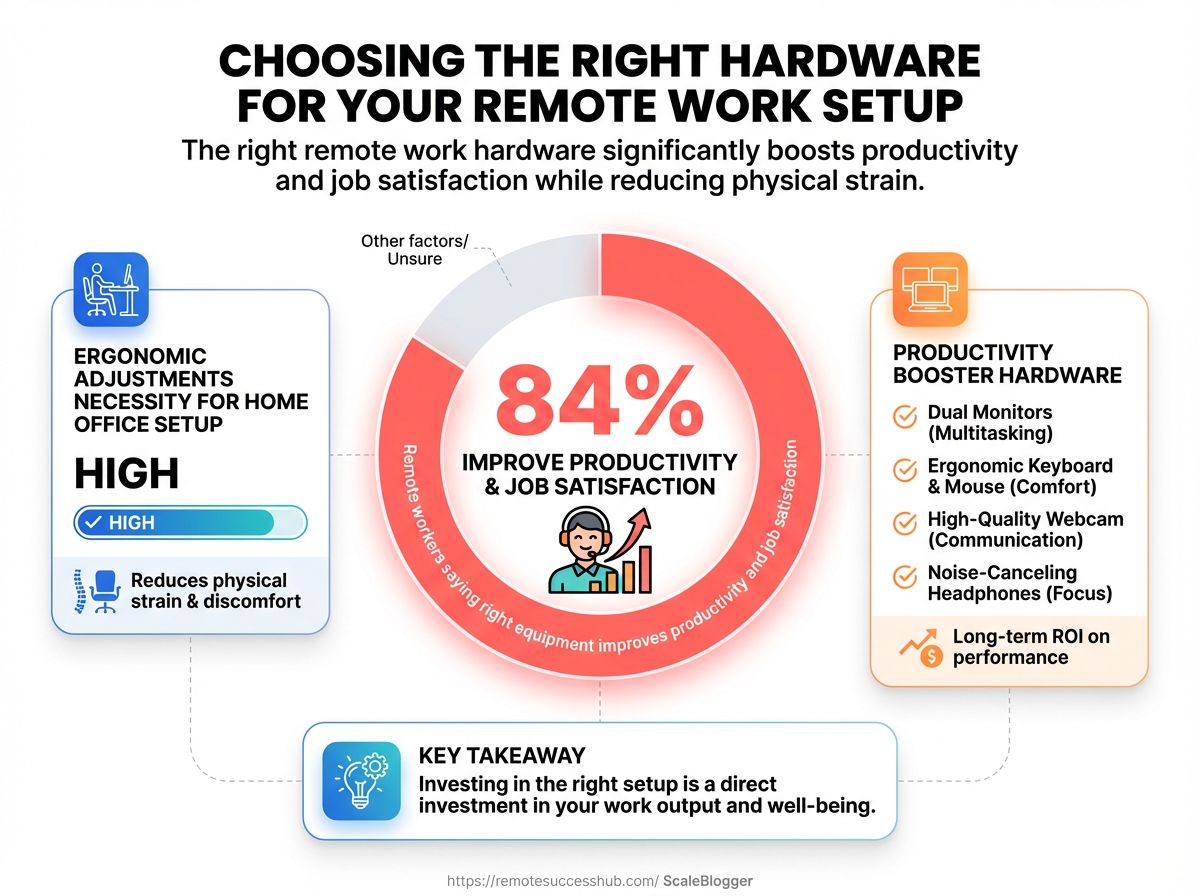
Practical evidence backs that up: 80% of remote workers say the right equipment improves productivity and job satisfaction (2025), and 65% say ergonomic adjustments are necessary for their home office setup (2025).
Small upgrades matter.
An ergonomic chair from Herman Miller eases back strain during long sessions.
A clear webcam like the Logitech C920 and noise‑canceling headphones from Sony or Bose keep calls sharp, while updated laptops such as the early‑2026 Apple MacBook Pro with the M2 chip handle multitasking without lag.
Matching tools to how you actually work determines whether your space supports deep focus or just creates more friction.
Table of Contents
Why your hardware is a career decision
Choosing your laptop, chair, and headset isn’t just about comfort.
The gear you use daily shapes how quickly you finish work, how clearly teammates see you, and how easy it is to take on higher-profile projects.
In tight hiring and promotion cycles, those small advantages compound into measurable career mobility.
Consider that 80% of remote workers said the right hardware boosted productivity and job satisfaction (2025).
And 65% reported ergonomic changes were necessary for their home office (2025).
Upgrading to a faster machine or a better webcam changes more than comfort; it changes perception and output.
A fast, reliable laptop—like the 2026 MacBook Pro with the M2 chip—lets developers, designers, and analysts iterate without lag.
A clear webcam and noise-canceling headphones make you presentable on calls.
An ergonomic chair from Herman Miller keeps you focused for longer stretches.
Those tangible improvements alter how managers assign work and how peers perceive your reliability.
How hardware affects productivity, visibility, and career mobility
Good gear reduces friction.
Less waiting for apps to load, fewer dropped calls, and fewer distractions mean more deep work time.
That raises measurable output and lowers error rates.
Visibility improves when video, audio, and screen-sharing work smoothly.
Teams notice contributors who are consistently available and clear during meetings.
Over time, that visibility translates into stretch assignments and promotions.
Career mobility depends on reputation.
Reliable hardware signals professionalism.
It also enables flexible work patterns—travel, different time zones, or hybrid arrangements—without loss of performance.
Common remote-worker pain points the right equipment solves
Upfront costs often hide recurring losses: wasted hours and missed opportunities.
The right setup eliminates these common problems.
Slow laptop: Upgrading removes idle time and speeds delivery.
Weak webcam/audio: A Logitech C920 and Bose or Sony headphones improve meeting clarity.
Poor posture/back pain: An ergonomic chair from Herman Miller reduces discomfort and missed workdays.
Unreliable Wi‑Fi: Mesh routers from Netgear or TP‑Link fix dead zones and dropped calls.
Tool mismatch: Use hardware that integrates with platforms like Microsoft Teams for fewer compatibility issues.
Ergonomics: Adjustments that reduce strain and maintain productivity over long sessions. Future-proofing: Choosing components that handle next‑generation tools and software updates.
Balancing durability, portability, and future-proofing
Durability matters if you work from cafes or travel.
Portability matters if you commute or present on site.
Future-proofing matters for the next three to five years of software demands.
Aim for a solid laptop with a recent processor, a comfortable chair if you spend long hours, and accessories that are modular and replaceable.
For curated guides and practical gear lists, platforms like https://remotesuccesshub.com/ collect real-world setups and workflows.
Investing in hardware is investing in your career trajectory.
Small upgrades now save hours later and open doors that cheap, unreliable gear quietly keeps closed.
Core workstation components and how to choose them
Picking the right core components starts with honest questions about how you actually work each day.
Do you move between locations, handle lots of video calls, or run heavy local builds? Your answers should shape whether mobility or raw power comes first. For remote professionals, the biggest productivity wins come from matching hardware to workflows rather than buying the fanciest model.
That means sizing CPU and RAM to the tasks you do every day, choosing a monitor that reduces neck strain, and planning upgrade paths so a machine ages gracefully.
Match the rest of this section to your workflows and budget.
The guidance below focuses on practical trade-offs for real remote workflows, with clear, actionable specs you can use when shopping.
Comparing device types
Below is a practical comparison of common device types remote professionals choose.
Each row pairs the form factor with the real trade-offs you’ll face and recommended baseline specs.
Laptop vs. desktop: performance, upgradeability, and mobility
Form factor | Performance per dollar | Upgradeability | Portability | Typical use cases | Recommended specs |
|---|---|---|---|---|---|
Ultraportable laptop | Medium — premium for thinness and battery life | Low — soldered RAM/SSD common | Excellent — < 1.5–2 kg and long battery | Frequent travelers, meetings, writing/comms | Apple MacBook Pro (M2, 2026) or similar; |
Performance laptop | Medium–High — balances mobility with power | Medium — some models allow RAM/SSD swaps | Good — heavier, shorter battery than ultraportables | Developers, video editors on the move | Intel i7/Ryzen 7 or Apple M2 Pro; |
Desktop tower | High — best raw performance per dollar | High — easy CPU/GPU/RAM/storage upgrades | Poor — stationary | Compiling, virtual machines, content creation | AMD Ryzen 7/Intel i7 or better; |
Mini-PC / NUC | High for size — good value in small footprint | Low–Medium — limited expansion slots | Very portable within home/office | Space-limited desks, home lab nodes, light editing | Intel/AMD compact CPUs, |
Desktops still deliver the best price-to-performance and upgrade path for heavy multitasking or local builds.
Ultraportables win for mobility and battery life, while mini-PCs hit a balance for small desks or secondary nodes.
Processor, memory, and storage: the specs that matter
Choose CPU cores and frequency based on parallel work.
For heavy multitasking and containers, favor higher core counts.
For single-threaded apps and UI responsiveness, higher clock speeds help.
CPU: Prefer
6–8 coresfor developers and8+ coresfor heavy builds or media work.RAM: Start at 16GB for standard remote workflows; choose 32GB if you run VMs, Docker, or many browser tabs.
Storage: Use an NVMe SSD for OS and projects;
512GBminimum,1TBrecommended if storing media locally.
Term: NVMe SSD — fast flash storage that reduces app load times and build latency. Term: Cores vs threads — cores are physical processors; threads are virtual tasks a CPU can handle concurrently.
Monitors: size, panel type, and ergonomics
Aim for at least one 24–27″ monitor for regular remote work and consider dual monitors if you multitask heavily.
Prioritize IPS panels for color accuracy and viewing angles when video calls and design work both matter.
Screen size: 24–27″ for primary, 27–32″ ultrawide for heavy multitasking.
Panel: IPS for color and viewing angles; VA for deeper blacks if you watch a lot of video.
Ergonomics: Use a height-adjustable arm so the top third of the screen sits at eye level.
Good monitors also improve camera alignment for Microsoft Teams calls and reduce neck strain that 65% of remote employees said they address with ergonomic adjustments (2025).
Choose parts that match how you work rather than the highest specs alone.
A balanced setup delivers more reliable productivity and less frustration day-to-day.
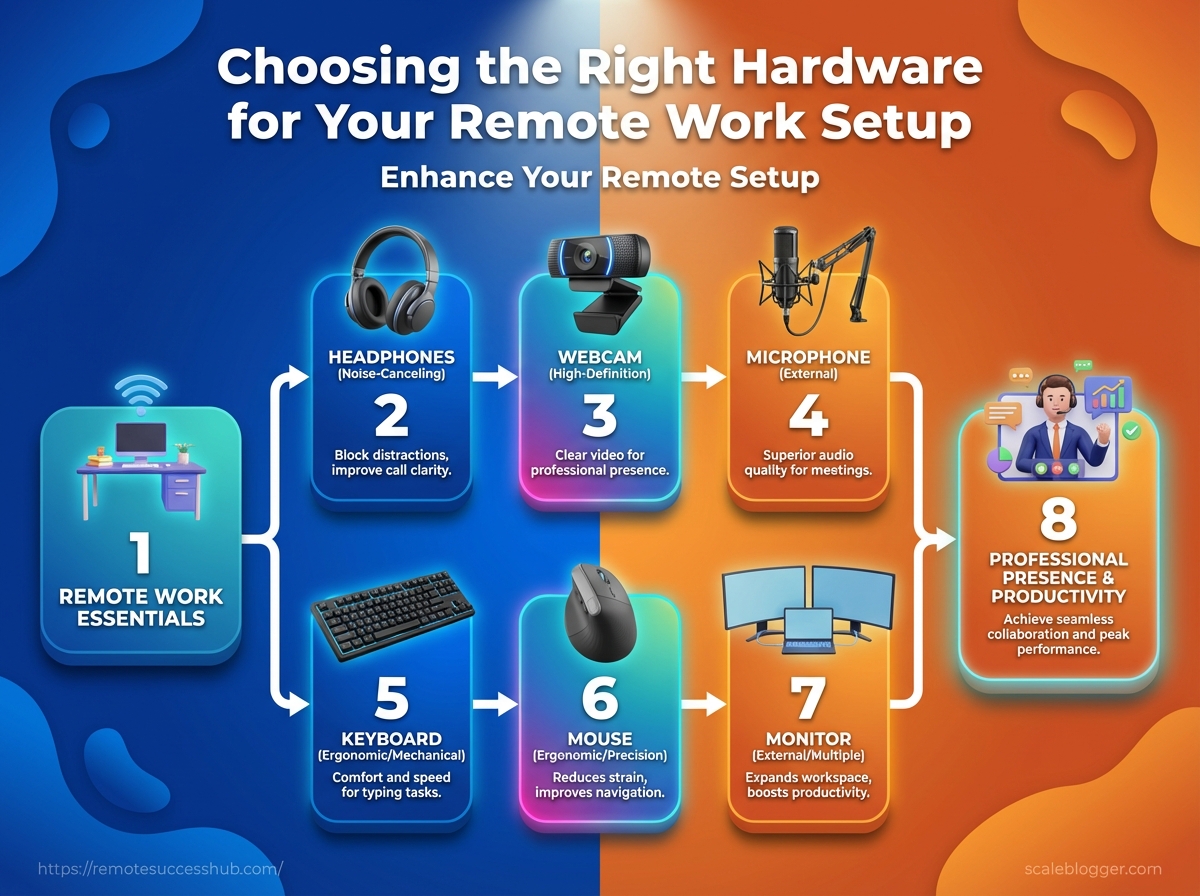
Small changes at the edges of your desk often yield the biggest wins in focus and meeting clarity. The right keyboard, mouse, webcam, mic, and headphones remove friction from daily tasks and let conversations happen without tech interruptions. Focus on how these peripherals influence your workflow, noting that ergonomic design is key. As highlighted in the section about productivity, having the right hardware contributes significantly to job satisfaction.
This section outlines how to prioritize each peripheral based on your specific needs, ensuring you select gear that truly fits your work style.
Ergonomics and physical setup for sustained performance
A properly tuned physical setup keeps the body comfortable and the mind focused for long stretches.
Remote workers who make small, deliberate changes to posture, screen placement, and lighting report fewer aches and more uninterrupted focus.
Comfort is not an abstract goal — it’s measurable.
In 2025, 80% of remote workers said the right hardware improved productivity and job satisfaction, and 65% said ergonomic adjustments were necessary for their home office (2025).
This section focuses on the practical placements and accessories that create that difference.
These recommendations avoid hardware shopping lists and instead show how to arrange what you already have and which small additions return the biggest endurance gains.
Chair, desk, and monitor placement guidelines
Neutral posture matters more than chair brand.
Sit with hips slightly higher than knees, feet flat, and a slight lumbar curve supported. Seat height: Adjust so elbows rest at 90°–110° from the desk surface. Back angle: Recline the backrest 10–20° for circulation during long work blocks. Arm support: Forearms should rest lightly on armrests without shrugging shoulders.
Monitor placement controls neck strain and attention.
Position the top third of the screen at or just below eye level and place the monitor about an arm’s length away.
For multi-monitor setups, use the primary screen directly in front and angle secondaries inward to avoid repeated neck turns.
Accessories that reduce fatigue: stands, footrests, and keyboard trays
Little tools move the strain elsewhere so knees, back, and shoulders share the load.
Footrest: Raises feet to keep hips slightly above knees and reduce lower-back pressure.
Monitor stand or riser: Brings screens to eye level without forcing neck extension.
Adjustable keyboard tray: Lowers wrists and allows negative tilt to prevent wrist extension.
Laptop riser plus external keyboard: Keeps a laptop’s screen usable while enabling proper typing angles.
Anti-fatigue mat (for sit-stand): Cushions feet during standing sessions and reduces leg fatigue.
Rotate positions every 30–60 minutes.
Changing posture often prevents cumulative strain more effectively than any one single gadget.
Lighting and camera positioning for professional presence
Good lighting keeps you alert and creates a clearer, more natural video image.
Place a soft key light roughly at eye height and 30–45° to one side to avoid flat, shadowless faces.
Avoid strong backlighting from windows; if unavoidable, add a fill light in front.
Position the webcam at eye level for direct lines of sight.
Use a diffused front light rather than an overhead bulb.
Test in your meeting app (for example, Microsoft Teams) and tweak exposure or background settings until the image looks natural.
Logitech’s C920 remains a practical choice for clear webcam output, and noise-canceling headphones from Bose or Sony help keep audio crisp during long calls.
These incremental changes reduce physical strain and improve how others perceive your presence on video.
For step-by-step checklists and printable setup diagrams, platforms like https://remotesuccesshub.com/ offer ready-to-use templates and community-tested tips.
Network, security, and backup hardware
A jittery video call or a failed restore is the kind of problem that eats time and trust.
Investing in the right network gear and backup hardware prevents those interruptions from becoming career hazards.
Think of this layer as the plumbing and insurance for every project you deliver.
Start with a router that prioritizes business traffic, supports modern encryption, and receives timely firmware patches.
Add a mesh system only if your home has dead zones; a single strong wired drop is often more reliable for docking stations and primary workstations.
What follows are practical choices and configurations that keep your connection stable, your data recoverable, and sensitive screens private.
Home network essentials: router, mesh, and bandwidth planning
Feature | Why it matters for remote work | Minimum recommendation | Notes |
|---|---|---|---|
Wired Ethernet availability | Lowest latency, most stable for video calls and VPNs | At least one Gigabit Ethernet port per primary device | Use CAT6 cabling for future-proofing |
Dual-band / Tri-band Wi‑Fi | Separates older devices from high-bandwidth traffic | Dual-band for small homes; tri-band for many simultaneous streams | Tri-band helps in dense-device households |
| Ensures video/conferencing traffic gets priority | Router with customizable | Prioritize ports/apps used by Teams or video tools |
Built-in VPN / VPN passthrough | Secure remote access without exposing services | Router that supports OpenVPN or WireGuard | Useful if company requires direct VPN connections |
Automatic security updates | Protects against router-level exploits | Auto-updates enabled by default | Check vendor uptime for patches regularly |
Guest network support | Segregates IoT devices from work devices | Separate SSID for guests and smart devices | Limits attack surface on work LAN |
MU‑MIMO & OFDMA | Improves multi-device performance | Support for MU‑MIMO and OFDMA (Wi‑Fi 6+) | Reduces contention in busy homes |
WPA3 support | Stronger Wi‑Fi encryption | WPA3-capable router | Use WPA3-Personal for home networks |
Parental/traffic monitoring | Visibility into bandwidth hogs | Basic traffic reporting in router UI | Helps diagnose unexpected slowdowns |
USB / NAS sharing | Local file sharing and short-term backups | Router with USB 3.0 or SMB support | Not a substitute for a dedicated NAS |
This table gives a checklist to compare routers and mesh systems side-by-side.
Prioritize wired Ethernet and QoS if your work includes frequent meetings or real-time collaboration.
Firmware update cadence is often the best proxy for a vendor’s security posture.
Local and cloud backup hardware
Backups should be both local for fast restores and cloud for offsite resilience.
A two-tier approach avoids both time-consuming large downloads and single-point failures.
NAS for daily work: Buy a NAS (2-bay minimum) with RAID1 for redundancy and local restore speeds.
External drives for archives: Use encrypted external SSDs for quarterly snapshots and long-term archives.
Cloud backups for disaster recovery: Pair local NAS with a cloud sync/backup policy to a trusted provider.
Test your restores: Schedule a restore drill every 3–6 months to confirm recovery time and integrity.
Physical security: locks, privacy, and storage
Physical theft or shoulder-surfing happens more than people think.
Simple hardware mitigations stop low-effort attacks.
Cable locks for laptops: Anchor primary machines when working from cafes or shared spaces.
Privacy screens: Attach a privacy filter for travel or open-plan home areas to block side glances.
Secure storage: Keep backup drives and sensitive papers in a locked drawer or small safe.
Label and inventory: Track serials and last backup dates to speed incident response.
A resilient remote setup blends a solid router strategy, layered backups, and basic physical security.
For practical checklists and templates that match these recommendations, explore platforms like https://remotesuccesshub.com/ — they collect tools and workflows used by experienced remote professionals.
📥 Download: Download Template (PDF)
Budgeting and buying strategies
Most people treat hardware like a checkbox.
Smarter buyers treat it like staged investments: buy what removes the biggest daily friction first, then layer comforts and redundancy.
That approach stretches limited dollars and avoids impulse upgrades.
Remote work hardware choices matter because small slowdowns compound over weeks.
Consider that 80% of remote workers said the right hardware significantly improved productivity and satisfaction in 2025, and 65% said ergonomic adjustments were necessary that same year.
Those figures show where spending moves the needle.
Decide on three spend bands and a clear upgrade rhythm before hitting checkout.
That makes comparisons easier, helps when negotiating warranties, and reduces buyer’s remorse.
Example builds by budget
Tier | Typical budget (USD) | Core device recommendation | Key peripherals | Why it fits this tier |
|---|---|---|---|---|
Budget (under $800) |
| Lenovo IdeaPad 3 or Acer Chromebook 514 — basic CPU, 8GB RAM, 128–256GB SSD | Logitech C920 webcam, entry USB headset, basic mouse, budget mechanical keyboard, 15″ laptop stand, external SSD (Samsung T7, 500GB), Ethernet adapter, surge protector | Covers core tasks and video calls affordably; good for writers, support roles, and part-time remote work. |
Balanced ($800–$1,800) |
| Apple MacBook Air M2 or Dell XPS 13 — solid CPU, 16GB options, 256–1TB SSD | Logitech MX Keys or ergonomic keyboard, Logitech MX Master mouse, Dell UltraSharp 24″ monitor, Logitech C920, Sony WH-1000XM5 headphones, external NVMe SSD (1TB), mesh router (TP-Link Deco), UPS (APC Back-UPS) | Ideal for full-time remote professionals who need reliable performance, clearer calls, and single-monitor productivity boosts. |
Investment ($1,800+) |
| Apple MacBook Pro (M2) — higher-spec models or high-end Windows workstation | Herman Miller Chair, dual Dell UltraSharp 27″ monitors, professional mic (Shure/Blue), Sony/Bose NC headphones, mechanical keyboard (high-end), standing desk (Fully/Jarvis), Netgear Orbi mesh, enterprise-grade UPS, dedicated NAS for backups | Long-term, high-productivity setup for creatives, devs, and managers who need performance, comfort, and redundancy. |
Buying patterns change with role and tolerance for risk.
Choose a band, then pick components that unlock immediate productivity.
The table above shows typical devices and peripherals to expect at each price level.
Use it as a shopping map rather than a rigid checklist.
Where to buy: retailers, refurbished vendors, and warranties
Shopping from established retailers gives predictable return policies and warranty handling.
Big-box stores and manufacturer stores remain simplest for new devices.
Certified refurbished vendors like Apple Refurbished, Dell Outlet, and reputable third-party refurbishers often have steep discounts and warranty coverage.
For accessories, look to authorized resellers to keep warranty validity.
Retailer: Compare Best Buy, B&H, and manufacturer stores for bundled deals.
Refurbished: Choose factory-refurbished units with at least 90-day warranties.
Warranty: Prioritize extended warranties for high-cost devices and chairs; check whether service is onsite or ship-in.
For curated buying guides and periodic deal roundups, platforms like https://remotesuccesshub.com/ aggregate remote-focused recommendations and promotions.
Upgrade timeline: which components to prioritize first
Start with what blocks your productivity.
Upgrade the core device if you feel consistent lag or long compile/render times.
Improve network (mesh router or wired Ethernet) if video calls stutter.
Add a monitor next — screen space multiplies efficiency.
Fix comfort issues: chair or standing desk after the above.
Invest in backup and UPS once workflows are stable.
Choose one change per quarter to avoid disruption and assess ROI.
Spend where it stops the biggest daily annoyance first; other upgrades can wait a quarter or two.
Customization and industry-specific hardware choices
Different roles demand different gear.
Designers need color-accurate displays and fast GPUs, developers want keyboard comfort and local build speed, and data teams prioritize CPU cores, RAM, and storage throughput.
Choosing hardware around the daily tasks, not abstract specs, prevents wasted money and improves output.
Specialized choices often come down to trade-offs: portability versus raw power, color fidelity versus battery life, or camera quality versus bandwidth.
Use real-world triggers — long renders, multi-hour calls, or large dataset joins — to decide which upgrade moves the needle first.
80% of remote workers report that the right hardware significantly improves their productivity and job satisfaction (2025).
65% consider ergonomic adjustments necessary for their home office setup (2025).
Design, development, and data roles
Designers, developers, and analysts share some needs but diverge on the specifics.
Designers need accurate displays and responsive input devices.
Developers value thermals and keyboard layout.
Data scientists require multi-threaded CPUs, NVMe storage, and plenty of RAM.
Design — Monitor: Prefer a 27″ or larger IPS panel with at least sRGB or DCI-P3 coverage and hardware calibration support.
Design — GPU: Mid-range to high-end GPU for tooling like Adobe and Figma render acceleration.
Development — CPU: Favor higher single-core clocks and reliable cooling to speed builds and tests.
Development — Keyboard: Mechanical or high-quality scissor switches for long coding sessions.
Data — Memory: 32GB+ RAM and
NVMeSSDs for large datasets and fast model training.Data — Connectivity: Gigabit wired NICs and external NVMe enclosures for dataset portability.
Practical example: an analyst pairing a multi-core Intel/Apple M2 machine with a Thunderbolt NVMe enclosure reduces dataset load times during model iteration.
Client-facing and content roles: camera, lighting, and streaming gear
People on camera need consistent presence more than raw specs.
A clean 1080p webcam, soft lighting, and a decent mic create professional video without breaking the bank.
Streaming setups add capture cards and hardware encoders when live production is frequent.
Two quick tips before the demo video: prioritize natural-looking, diffused light over bright direct spots.
Aim the camera slightly above eye level for a flattering angle.
Camera: Logitech C920-class or better for reliable 1080p.
Lighting: Softbox or LED panel with dimmer and color-temp control.
Audio: USB or XLR mic with pop filter; consider a small audio interface.
Streaming: Capture card and hardware encoder for multi-source live streams.
Hybrid workers: portability and hot-desk compatibility
Hybrid setups need quick transitions between home and office.
Lightweight laptops, portable docking solutions, and standardized peripheral profiles make hot-desking painless.
Choose a lightweight laptop with enough power for most tasks — recent Apple MacBook Pro
M2models are a practical choice for many (2026).Use a single Thunderbolt dock to replicate the full desk with one cable.
Keep a compact mechanical keyboard and a travel mouse in a carry case for consistent feel across locations.
Matching gear to workflow prevents the friction of reconfiguration and keeps focus on the work, not the setup.
Maintenance, warranties, and sustainable disposal
Think of maintenance as insurance you perform yourself; small, regular actions keep your kit reliable and slow depreciation.
Remote work depends on predictable hardware, so a routine that prevents failures is worth a few hours each quarter.
Eighty percent of remote workers say the right hardware boosts productivity and satisfaction (2025).
That makes the difference between an annoying glitch and a lost afternoon of billable work.
This section lays out a practical maintenance checklist, clear rules for when extended warranties make sense, and a step-by-step approach to securely wipe and responsibly dispose of old devices.
Practical examples reference known brands where it helps clarify decisions.
Routine maintenance checklist to extend hardware life
Regular checks prevent the kinds of failures that cost time, not just money.
Treat this as quarterly work for laptops and monthly checks for high-use peripherals.
Clean external surfaces weekly: Wipe keyboards, mice, and webcams with manufacturer-approved wipes to remove oils and grit.
Dust and airflow monthly: Open vents or use compressed air where safe to prevent thermal throttling in laptops and routers.
Update firmware and drivers quarterly: Firmware fixes can improve stability for routers, webcams, and peripherals from vendors like Logitech.
Monitor battery health every 3–6 months: Track cycle counts and replace high-cycle batteries before unpredictable failures.
Inspect cables and strain relief monthly: Replace frayed power cables and secure cable routing to avoid connector damage.
Service moving parts yearly: Replace chair casters, clean printer rollers, and refresh monitor stands to maintain ergonomics and safety.
Warranty, extended plans, and when to buy protection
Buying protection depends on the device cost, replacement time, and how critical uptime is to income.
High-value, mission-critical items deserve more coverage.
High-cost rule: If a device costs more than three months’ salary replacement cost or would halt work, seriously consider extended coverage.
Manufacturer vs. third-party: Manufacturer plans often offer seamless repairs for Apple MacBook Pro M2 models and similar devices; third-party plans can be cheaper but check service speed.
Timing: Buy extended protection within the manufacturer’s initial warranty window to cover accidental damage if needed.
Service speed: Prefer plans that offer expedited repairs or loaner devices to minimize downtime.
Secure data wiping and environmentally responsible disposal
Keeping data safe continues after you stop using a device.
Follow a verified, stepwise process before recycling or reselling.
Ensure full-disk encryption is enabled while the device is in use (
FileVaulton macOS,BitLockeron Windows).Perform a full backup and verify integrity before wiping.
Use OS-native secure-erase tools (
Disk Utilityon macOS or the Windows reset with data removal) to overwrite storage.For SSDs, follow vendor guidance for secure erase; consider physical destruction for drives with extremely sensitive data.
Obtain a written certificate from the recycler if disposing through a third party.
Manufacturer recycling: Many makers, including Apple and Logitech, run trade-in or recycling programs — check those first.
Donation and resale: Wipe drives and donate or sell functional items to extend their life.
Certified e-waste recycling: Use certified recyclers for materials recovery and responsible disposal of batteries and circuit boards.
Manufacturer warranty: Standard coverage usually applies for the first year; extended plans add protection for accidents and longer service windows.
Take care of hardware, and it takes care of your time.
Small maintenance habits, sensible protection choices, and secure, eco-conscious disposal keep both work and the planet running better.
How to test gear before committing
Treat a purchase like a trial hire: the goal is to see whether a piece of hardware reliably performs the tasks you do every day.
Testing avoids buyer’s remorse and turns a guess into a small experiment you can learn from.
Most people skip rigorous testing even though 80% of remote workers say the right hardware boosts productivity and satisfaction (2025).
Testing matters for physical fit and for real-world performance across software, networks, and workflows.
Run short trials, measure concrete outcomes, and collect peer feedback before you lock in a purchase.
The following checks turn a two-week trial into usable data you can act on.
Short trials, return policies, and what to check during a test period
Start tests with the vendor’s return window and warranty in mind.
A generous return policy lets you stress the product without risk; note the dates you must initiate a return.
Comfort and fit: Use the gear for full work sessions over several days to spot aches or fatigue.
Compatibility: Confirm the device pairs with your OS and key apps, such as Microsoft Teams and your preferred audio routing tools.
Battery and endurance: Run an 8-hour cycle for laptops or headphones to check real-world battery life.
Build and finish: Carry the item between locations and inspect hinges, ports, and connectors for looseness or defects.
Return logistics: Verify where to ship returns, any restocking fees, and how refunds are processed.
Performance benchmarks and real-world task checks
Benchmarks should recreate your daily work, not synthetic scores.
Measure how the gear performs under load for the things you actually do.
Video-call stability: Join a multi-person Microsoft Teams meeting, share your screen, and note audio sync and dropped frames.
Throughput tasks: For developers, run a frequent build; for creatives, export a typical project and time it.
Network resilience: Use both Wi‑Fi and wired connections and watch for jitter during screen sharing or file transfers.
Peripheral latency: Test keyboard and mouse feel during 30–60 minutes of focused work to detect lag or discomfort.
Gathering community feedback: forums, reviews, and peer recommendations
A few hands-on reports from people in your job role beat generic five-star reviews.
Look for feedback from peers who use the same apps and environments.
Niche forums: Search role-specific threads where remote workers discuss long-term reliability and software quirks.
Product-specific reports: Prioritize reviews that list test conditions similar to yours (OS, app versions, network).
Peer checks: Ask colleagues if they’ve used items—brands like Logitech for webcams or Herman Miller for chairs come up often in reliable recommendations.
Quick experiments, objective measures, and peer input together make a clear decision.
Take the time to test; the small effort now saves daily friction later.
Conclusion
Make your hardware stop getting in the way of your work
Choosing the right gear is a career decision: a frozen midweek video call, a chair that pins your lower back, or a laptop fan that sounds like a jet all shave away focus, credibility, and hours.
Investing in the right core workstation pieces, the right peripherals for clear communication, and a stable network fixes those daily frictions and frees up time for higher-impact work.
Treating hardware as part of your professional toolkit—not an afterthought—changes how you show up to meetings, ship work, and protect your time.
Do a quick, focused audit right now: start with a 30-minute hardware check where you run a video-call stress test, measure network speed, sit in your chair for 20 minutes and notice discomfort, and swap in one alternative peripheral (headset or external monitor) to compare.
If you need checklists or buying guidance, tools like Remote Success Hub collect practical recommendations for the best equipment for remote work and actionable home office setup tips.
Pick one friction, fix it this week, and measure the difference in your next three workdays.